Deep dive
Grok App Features: Everything the xAI Assistant Can Do
Grok is more than a chatbot. After hands-on testing, here is a full tour of every major feature in the Android app, from real-time search to image and video creation, voice, vision and the developer-friendly chat modes.
Get Grok on Google PlayReal-time search and X context
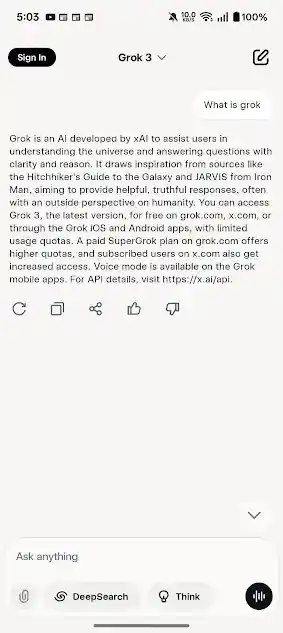
The single biggest difference between Grok and rivals is its live connection to X. Instead of answering only from training data, Grok pulls recent posts, trends and sentiment to give timely responses. In testing, questions about breaking topics returned noticeably fresher answers than a typical assistant. The DeepSearch toggle goes a step further, gathering web summaries and attaching linked sources directly in the chat so you can verify claims. It is genuinely useful for news, product research and tracking how a topic is being discussed right now. As always with real-time tools, open the cited sources before relying on anything important.
Imagine: image and video creation
Imagine turns text prompts into images, and then into short videos with a single tap. It offers style, background and aspect-ratio presets such as 16:9, and a character-consistency option so a subject stays recognizable across generations. The one-click "Make video" function animates a still into a few seconds of motion. Heavy video jobs queue and take longer, so the fastest workflow is to generate a strong still first, then animate the best result. You can upscale and download finished media straight from the three-dot menu.
Grok Voice
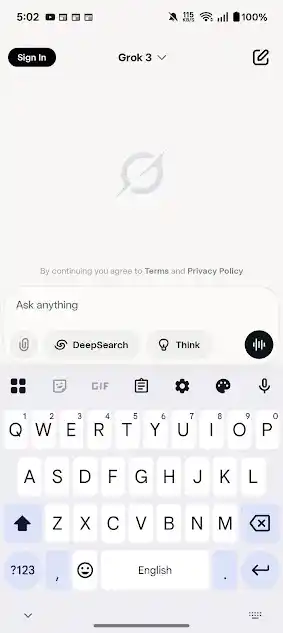
Voice mode lets you talk to Grok and hear spoken replies, which works well for hands-free questions and quick brainstorming. Responses are generally smooth, with occasional lag during heavy tasks. Some voice options and personas are limited on the free tier.
Vision and Draw a Sketch
Vision accepts photo uploads so you can ask Grok about an image: identify an object, summarize a document photo, or explain a chart. The Attach button supports both photos and files. There is also a Draw a Sketch canvas with undo, redo, color and background tools. Finish a rough sketch, then prompt something like "turn this into a 3D render" and Grok transforms it.
Documents, code and STEM reasoning
Inside any chat you can attach documents for summaries, get help writing and debugging code, and work through step-by-step math and science problems. The model selector offers Auto, Fast and Expert so you can trade speed for depth, and Projects plus History keep past work organized for later editing.
Privacy controls
Turning on Private mode stops a conversation from being saved to your History, which is handy for sensitive questions. You also control media and microphone permissions per feature, so Voice and Vision only get access when you want them to.
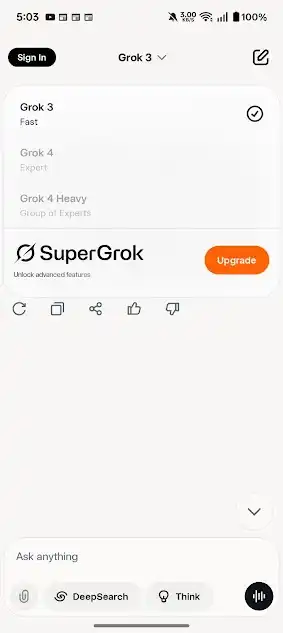
Models: Grok 3, Grok 4 and Grok 4 Heavy
The free tier runs on Grok 3 (Fast). SuperGrok unlocks Grok 4 and the multi-expert Grok 4 Heavy for harder reasoning, larger code reviews and higher limits. The model picker shows exactly which tiers are gated, so you always know what you are getting.
Feature summary
Standout strengths
- Live X context and DeepSearch sourcing
- Image plus one-click video in Imagine
- Voice and Vision in the same app
- Expert mode for serious reasoning
Worth knowing
- Best models require SuperGrok
- Video generation can queue
- Free voice and personas are limited
- Verify real-time answers at the source
Who is Grok for?
After testing, Grok lands best with a few kinds of user. News followers and researchers get the most from real-time X context and DeepSearch sourcing. Students benefit from Expert mode for step-by-step math and science, plus document summaries for study material. Creators and social media managers lean on Imagine for quick visuals and short videos, and on the writing help for captions and scripts. Developers use it as a coding companion for snippets, debugging and explanations. If you want a single assistant that mixes current information with creative tools, Grok covers more ground than most.
Tips to get more out of Grok
- Match the model to the task. Use Fast for quick lookups and Expert for hard reasoning.
- Toggle DeepSearch when you need sources, leave it off for casual chat to keep replies snappy.
- Use Projects to keep related chats and creations together so you can return and iterate.
- Turn on Private mode for anything sensitive you do not want saved to History.
- Generate stills before videos in Imagine to save time on heavy jobs.
Feature FAQ
Does Grok work offline?
No. Grok needs an internet connection because it runs in the cloud and pulls real-time context.
Can Grok generate videos?
Yes. Imagine can animate an image into a short video with one tap, then let you upscale and download it.
What is the difference between Auto, Fast and Expert?
Auto picks for you, Fast prioritizes speed, and Expert prioritizes depth for harder questions.
Do I need SuperGrok to use these features?
No. Most features work on the free tier with some limits. SuperGrok unlocks the top models and higher usage.
Ready to try it? See the install guide or compare it on our alternatives page.