Windows & Mac
Grok for PC: How to Use Grok on Windows and Mac
Want Grok on a bigger screen? You do not need an APK. Here are three legitimate ways to run Grok on a Windows PC or Mac, from the official web app to Android emulators, with the pros and cons of each.
Open Grok on the webOption 1: Grok web app (easiest)
The simplest way to use Grok on any computer is the official web app at grok.com. Open it in Chrome, Edge, Firefox or Safari, sign in with Google, Email or X, and you get the full assistant: chat, DeepSearch, Imagine and the model selector, all on a large screen with a real keyboard. This is the recommended route for Windows and Mac because there is nothing to install and it always runs the latest version.
Option 2: Install it as a desktop app (PWA)
You can make the web app feel native. In Chrome or Edge, open grok.com, click the install icon in the address bar (or the three-dot menu → "Install Grok"), and it opens in its own window with a taskbar or dock icon. This Progressive Web App approach gives you a desktop-like experience without an emulator.
Option 3: Android emulator (advanced)
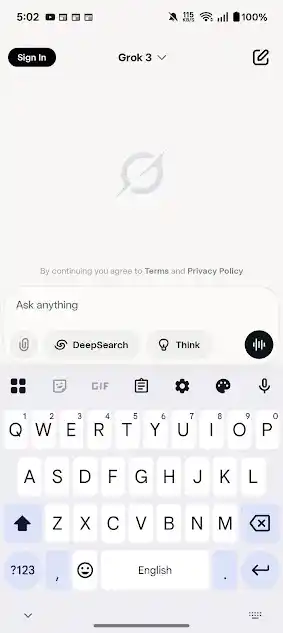
If you specifically want the Android app on your PC, you can run it inside an emulator such as a reputable Android environment, then install Grok from Google Play inside that emulator. This is heavier on resources and unnecessary for most people, but it works if you need the mobile UI or features on desktop. Always install the app from Play inside the emulator rather than loading a random APK.
Which method should you choose?
| Method | Best for | Install needed |
|---|---|---|
| Web app (grok.com) | Almost everyone | No |
| PWA install | Frequent desktop users | One click |
| Android emulator | Mobile UI on PC | Yes, heavy |
Is there an official Grok Windows app?
There is no standalone Grok .exe installer from xAI today, which is why the web app and PWA install are the recommended desktop routes. Be cautious of any third-party site offering a "Grok for Windows" download, as these are not official. The web app delivers the same models and features with zero risk.
Is Grok safe to use on PC?
Using Grok through the official web app at grok.com is as safe as any mainstream website: you are signing into xAI's own service over an encrypted connection. The PWA install is just that same site in its own window, so it carries no extra risk. The only place caution is needed is the emulator route, where you should install the app from Google Play inside the emulator and never load a random "Grok for Windows" file from an unofficial site. There is no official .exe, so any standalone Windows download claiming to be Grok should be treated as suspicious.
Troubleshooting Grok on PC
Web app will not load
Clear your browser cache, disable conflicting extensions, or try a different browser. A hard refresh often fixes a stuck page.
Sign-in loop
Allow third-party cookies for grok.com, or sign in with the email option if the Google or X popup is being blocked.
Emulator runs slowly
Enable virtualization in your BIOS, give the emulator more RAM and CPU cores, and close other heavy apps. The web app is far lighter if performance is a problem.
PC FAQ
Is there an official Grok desktop app?
Not currently. Use the web app at grok.com or install it as a PWA for a desktop-like experience.
Can I use Grok on PC for free?
Yes. The free tier works in the browser, with SuperGrok as an optional upgrade.
Do I need an emulator?
No. The web app gives you the full assistant without one. Emulators are only for people who specifically want the Android app on desktop.
Keep going on mobile too
Your chats sync across devices, so you can pick up a desktop conversation on your phone. See the Android download guide or the iOS guide to add Grok to your other devices.