Feature guide
Grok Imagine: How to Create AI Images and Videos on Your Phone
Imagine is Grok's built-in image and video studio. This guide explains how to generate your first image, turn it into a short video, use the style and consistency options, and get faster, better results.
Get Grok on Google PlayWhat is Grok Imagine?
Imagine is the part of Grok that turns text prompts into pictures, and then animates those pictures into short videos. It lives inside the same app as the chat assistant, so you can move between asking questions and creating visuals without switching tools. It supports style presets, background and costume options, aspect-ratio presets like 16:9, and a character-consistency feature so a subject stays recognizable across multiple generations.
Creating your first image
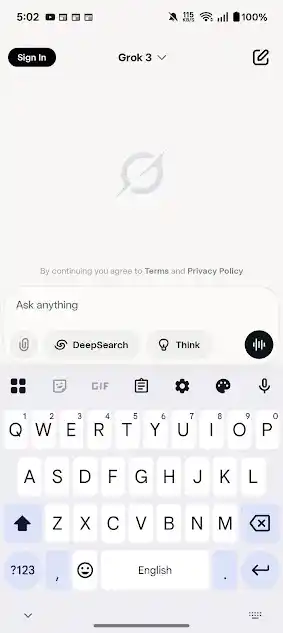
- Open Grok and start a new prompt.
- Describe what you want in plain language: subject, setting, mood, lighting and style. The more specific you are, the closer the result.
- Pick an aspect ratio if you have a destination in mind (16:9 for video thumbnails, square for social posts).
- Generate, then refine by editing the prompt rather than starting over.
Good prompts read like a short scene description. Instead of "a dog", try "a golden retriever puppy sitting in tall grass at golden hour, soft warm light, shallow depth of field". Specific nouns, a setting and a lighting cue do most of the work.
Turning an image into a video
Once you have an image you like, the one-click Make video option animates it into a few seconds of motion. From any image's three-dot menu you can also upscale the result and download it to your device. Because video generation is heavier, it can queue and take longer than a still, so the efficient workflow is to lock in a strong image first, then animate only your best pick.
Tips for better and faster results
- Iterate on stills before video. Stills are fast and cheap to regenerate; videos are not.
- Use consistency for series. The Attach-based character option keeps a subject looking the same across frames or posts.
- Lean on presets. Style and background presets get you 80 percent of the way before you fine-tune wording.
- Mind the queue. If you are generating a lot of video, expect waits during busy periods.
- Turn off automatic video generation in Settings → Behavior if you only want stills, to avoid spending time on unwanted clips.
Free vs SuperGrok for Imagine
You can create with Imagine on the free tier, with some limits on volume and the most advanced options. Heavier use and the top models come with a SuperGrok subscription. For the full breakdown of what each tier includes, see our SuperGrok pricing guide.
What Imagine is great for
In testing, Imagine shines for quick social visuals, concept art, mood boards and short animated clips to liven up a post. It is not a replacement for a professional video editor, but for fast, fun, phone-first creation it is genuinely impressive. Pair it with the assistant's writing help and you can draft a caption and create the matching image in the same place.
Prompt ideas to try first
If you are not sure where to start, these prompt shapes reliably produce good results. For a portrait: subject, age and expression, then lighting and lens (for example "soft window light, 50mm, shallow depth of field"). For a product shot: object on a surface, background, and mood ("matte ceramic mug on oak table, morning light, minimal"). For a scene: location, time of day, weather and a focal point. For animation, generate the still first, then describe the motion you want when you tap Make video, such as a slow camera push-in or gentle wind.
Common mistakes to avoid
- Vague prompts. "A nice picture" gives the model nothing to work with. Name the subject, setting and style.
- Jumping straight to video. Lock in a strong image first; animating a weak still just wastes a slow render.
- Ignoring aspect ratio. Set it up front so you are not cropping a finished image later.
- Over-editing in one prompt. Change one thing at a time so you can see what each tweak does.
What you can do with the results
Generated images and clips download straight to your device, ready for social posts, presentations, mood boards or thumbnails. Pair Imagine with Grok's writing help and you can produce a caption, hashtags and the matching visual in a single session, which is what makes it such a handy all-in-one tool for quick content.
New to the app? Start with our Android install guide.